
Trex IPTV Channels Not Loading? Get Your Channels Working Again
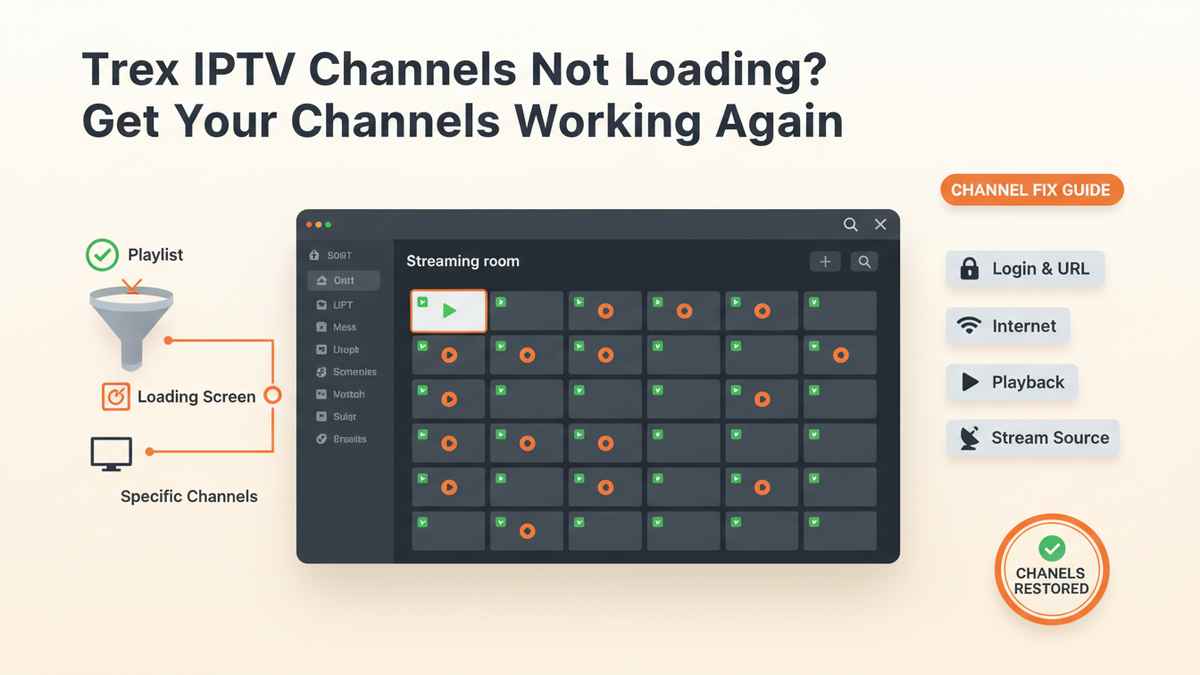
If Trex IPTV channels are not loading, the problem is usually easier to identify than it first appears. The key is to check whether all channels are affected or only certain ones.
If the playlist itself is not loading, check your login, playlist URL, and subscription. If the channel list appears but videos stay on a loading screen, look at your internet connection, playback settings, or the stream itself. If only a few channels are missing, the issue may be with those particular streams.
This guide walks through the problem in the right order so you do not waste time changing settings that have nothing to do with the issue.
What Does "Trex IPTV Channels Not Loading" Mean?
There are several different situations:
- The playlist loads, but no channels appear
- Channels appear but keep spinning
- The screen stays black
- Some channels work while others fail
- A whole channel group is missing
- Channels worked before but suddenly stopped
- Channels work in another IPTV player but not TiviMate
Each situation points to a different cause.
First, try several channels from different groups. If one channel fails but others play normally, you probably do not have a complete IPTV connection failure.
1. Check Your Trex IPTV Playlist First
If your channel list is empty, start with the playlist.
For an M3U playlist, make sure the complete URL is still valid. For Xtream Codes, check the server URL, username, and password.
A small typing mistake can prevent the playlist from working correctly. This is especially easy to do when entering long credentials with a Firestick or Android TV remote.
If you recently received updated login details, remove the old information and enter the new details exactly as provided.
Do not add extra spaces or change characters in the server address.
If the playlist loads but shows no channels
- Check your playlist settings and make sure the TV channels/groups have not been hidden or disabled.
- Also refresh the playlist. If the provider has changed channel information, an old playlist can contain outdated data.
2. Refresh the Playlist Before Reinstalling Anything
If Trex IPTV was working previously, updating the playlist should be one of your first steps.
In TiviMate, open:
Settings → Playlists → Your Playlist → Update Playlist
The exact wording can vary between versions.
After the update finishes, return to the channel list and test several channels.
If the playlist continues to update indefinitely or fails every time, do not keep repeating the same process. Check your internet connection and credentials, then test the same playlist in another compatible player.
A recent TiviMate discussion described a situation where a playlist processed but no channels appeared, even after clearing the cache and trying another connection. That kind of test is useful because it helps separate a TiviMate problem from a playlist or provider problem.
3. Only Some Trex IPTV Channels Are Not Loading
This is an important distinction.
If most Trex IPTV channels work but a few don't, your entire subscription probably isn't the problem.
The affected channels may be:
- Temporarily offline
- Removed from the provider's source
- Using a different stream format
- Experiencing a server-side problem
- Listed in an outdated playlist
Try several other channels first.
If only one channel or a small group continues to fail while everything else works, there is little benefit in reinstalling TiviMate.
Refresh the playlist and test the affected channels again later.
If they remain unavailable, contact your IPTV provider and give them the exact channel names.
4. Channels Keep Spinning but Never Start
A loading spinner usually means TiviMate has the channel information but cannot successfully start the stream.
Start with a simple test:
Try another channel.
If another channel starts immediately, the problem may be limited to the original stream.
If every channel spins, check:
- Internet connection
- IPTV subscription
- Playlist
- Streaming device
- TiviMate playback settings
Restart both your router and streaming device before moving to advanced settings.
Also test the internet connection on the same device running TiviMate. A phone showing a good connection does not necessarily mean the Firestick, Android TV box or Google TV device has the same network quality.
5. Trex IPTV Shows a Black Screen
A black screen is slightly different from a channel that simply refuses to load.
If you hear audio but see no picture, the video decoder may have difficulty handling that particular stream.
In TiviMate, check the playback or decoder settings and test the available hardware and software decoding options.
Try the same channel after changing the decoder.
If only certain channels produce a black screen, compare them with channels that play normally. That can indicate a stream or codec compatibility issue rather than a complete IPTV failure.
If every channel suddenly becomes black, restart the device first and then investigate the player configuration.
6. Trex IPTV Works in Another Player but Not TiviMate
This is one of the most useful troubleshooting tests.
If your Trex IPTV playlist works in another compatible IPTV player but channels do not load in TiviMate, compare the two setups.
Make sure they use the same:
- Server
- Username
- Password
- Playlist
- Device connection
If the other player streams normally on the same device and network, your internet connection is less likely to be the main problem.
At that point, focus on TiviMate's playlist configuration, playback settings, cache or app version.
Reddit users have reported similar situations where a playlist worked in another player while TiviMate could load the channel list but failed to play the streams. In one case, users investigated the player request and server behaviour rather than simply reinstalling the app.
7. Check Whether Your Internet Is the Problem
Do not judge your connection only by whether Wi-Fi says Connected.
Try opening another streaming service on the same device.
Then restart your router and streaming device.
If possible, test Trex IPTV through another connection, such as a phone hotspot.
This is a useful diagnostic test:
- Works on another network: Your normal network or routing may be contributing to the problem.
- Fails on every network: Focus on the playlist, account, player, or IPTV server.
A VPN can also be useful as a diagnostic test in situations where network routing or ISP filtering may be involved, but it should not be treated as a universal fix. A VPN cannot repair an expired playlist or an unavailable IPTV stream.
8. Check TiviMate Filters and Hidden Groups
Sometimes the channels have not disappeared at all.
A changed playlist view or filter can make it look as if channels are missing.
Check whether you are viewing:
- All channels
- Favourites only
- A specific group
- A filtered category
This matters because users have reported situations where channels appeared to have vanished while favourites continued to work.
If the playlist is present but the expected groups are missing, review the playlist's group and channel visibility settings before deleting anything.
9. What If the EPG Is Missing Too?
The EPG is separate from the actual channel stream.
Therefore, your channels can work while the TV guide is blank.
If both the channels and EPG have stopped updating, check the playlist first.
If channels work but the EPG does not, check the EPG source separately.
This is especially important if your provider recently changed the playlist URL. Recent TiviMate users reported cases where the playlist URL had been changed but the old EPG source remained attached, causing the guide to stop updating.
So if the problem is only "No Information" in the guide, do not assume your live channels are broken.
10. Clear TiviMate Cache
If the playlist and network are working but TiviMate is behaving strangely, clear the app cache.
On Fire TV or Android-based devices, open the application settings, select TiviMate and choose Clear Cache.
Then restart the device and open TiviMate again.
Do not immediately select Clear Data. That can remove your local app configuration and force you to add the playlist again.
Clearing cache is worth trying before a complete reinstall.
When Is the Problem Probably on the Provider Side?
Look at the pattern. The provider is more likely to be the problem if:
- All channels suddenly stop working
- The same playlist fails in another player
- Your credentials no longer authenticate
- Several channel groups disappear
- The issue affects multiple devices
- Your subscription has expired
- The provider has announced server or playlist changes
TiviMate cannot restore a stream that is unavailable at its source.
In that situation, contact Trex IPTV support with the exact problem, your affected channel names, and any error message you see.
Quick Diagnosis: Find the Problem in Minutes
| What you see | Most useful first check |
|---|---|
| No channels appear | Playlist and credentials |
| Playlist will not update | Server URL, account, and internet |
| One channel fails | Try other channels |
| Several channels fail | Refresh playlist |
| All channels spin | Network, playlist or provider |
| Black screen | Decoder/playback settings |
| Channels work elsewhere | TiviMate configuration |
| EPG missing only | EPG source |
| Channels disappeared | Groups and filters |
| Nothing works anywhere | Account or provider |
Final Word
When Trex IPTV channels are not loading, do not start by changing every setting in TiviMate.
First determine whether one channel, several channels, or the entire playlist is affected. Then check the playlist, credentials, network, and playback settings in that order.
If Trex IPTV works in another player, concentrate on TiviMate. If it fails everywhere, the playlist, account, or IPTV server is much more likely to be responsible.
That simple diagnosis can save you from repeatedly reinstalling the app when the actual problem is somewhere else.