
Trex IPTV EPG Not Working? How to Fix TV Guide Problems
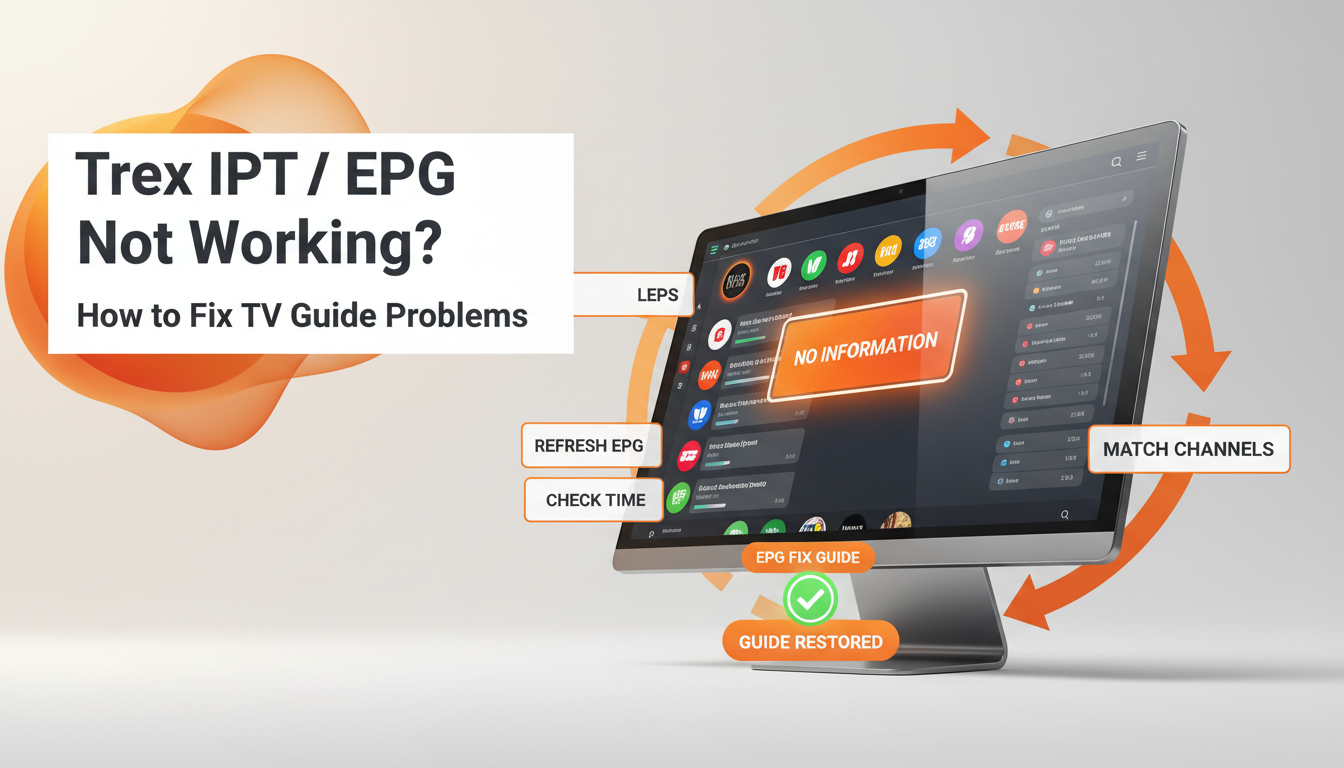
If Trex IPTV EPG is not working, your live channels may still play normally while the TV Guide shows "No Information," missing programs, incorrect times, or completely blank listings. The EPG is the guide data used by your IPTV player, so a problem with the guide does not necessarily mean that your entire Trex IPTV account is down.
Recent user discussions also show that EPG problems can sometimes affect multiple users at the same time, including reports of Trex EPG interruptions and failed manual updates.
Start with a manual EPG refresh, check your device time settings, and then work through the source, player, and channel-matching checks below.
What Is an EPG on Trex IPTV?
EPG stands for Electronic Program Guide. It displays information about current and upcoming programs, such as program names, schedules, and descriptions.
Trex IPTV states that EPG information is available on supported channels. The service itself provides the IPTV access, while a compatible IPTV player displays the channels and guide on your device.
Your setup may use:
- Xtream Codes
- An M3U playlist
- A compatible IPTV player
- EPG data supplied through the service or configured source
This means the channels can sometimes continue playing even when the guide data has stopped updating.
Why Is My Trex IPTV EPG Not Working?
The problem usually falls into one of several categories:
- The EPG has not refreshed properly.
- Cached guide data is outdated.
- Your device timezone is incorrect.
- The EPG source is temporarily unavailable.
- Channel information is not matching correctly.
- Your IPTV player has an EPG configuration problem.
- The issue is affecting the provider's EPG source.
A useful first step is to identify the exact symptom.
| EPG problem | Possible cause |
|---|---|
| Entire guide is blank | EPG source or refresh problem |
| "No Information" on every channel | Guide data failed to load |
| Only some channels are missing | Coverage or channel matching |
| Programs are shifted by one hour | Timezone or EPG offset |
| Old programs remain visible | Guide has not refreshed |
| EPG works on one device but not another | Player or device configuration |
1. Refresh the Trex IPTV EPG
The simplest fix is often a manual refresh.
Open your IPTV player and look for an option such as EPG, TV Guide, Update EPG, or Refresh Guide.
The exact menu can vary by player version, so do not worry if the wording is different.
After starting the update:
- Wait for the update to finish.
- Return to the live channel list.
- Open the TV Guide again.
- Check several channels.
- Give the player some time to populate the listings.
Recent TiviMate discussions also show users resolving guide problems by checking the EPG update status and manually updating the guide.
Trex's own installation guidance also recommends refreshing the EPG after setup.
2. Check Your Device's Time and Timezone
If your EPG displays programs but the times are wrong, check the device clock before changing advanced IPTV settings.
Set:
- Date and time to automatic
- Timezone to your actual location
- Automatic time synchronization where available
A timezone problem can make a correctly loaded guide appear incorrect because the program times are displayed against the wrong local clock.
If everything is exactly one hour ahead or behind, check the timezone and any manual EPG offset before doing anything more complicated.
3. Restart Your IPTV Player and Device
A temporary player issue can prevent fresh guide information from appearing.
Try this sequence:
- Close the IPTV player.
- Force close it if your device provides that option.
- Restart the device.
- Open the IPTV player again.
- Refresh the EPG.
- Check the TV Guide.
This is especially useful after changing your playlist, login details, timezone, or player settings.
Trex's installation guide recommends restarting the app after major configuration changes.
4. Clear Outdated EPG Data or Cache
Some IPTV players store guide information locally. If that stored data becomes outdated, the player may continue showing an old or incomplete guide.
Look for an EPG section in your player and, where available, use options such as:
- Clear EPG
- Clear guide data
- Refresh EPG
- Update EPG
You can also clear the app cache through your device settings if the player supports it.
Be careful with Clear Data or uninstalling the application. Those options may remove your saved account or playlist configuration.
A recent IPTV troubleshooting discussion similarly described clearing EPG data and cache as part of troubleshooting guide updates.
5. Check Whether Only Certain Channels Are Missing
If some channels have program information while others say "No Information," the problem may not be the entire EPG.
EPG data depends on channel information being matched correctly between the playlist and guide source.
For example, your playlist may contain a channel identifier such as a tvg-id. If the identifier does not correspond with the guide data, the player may have difficulty attaching the correct listings to that channel.
This can explain why:
- BBC-style channels may show listings while another channel does not.
- One channel can display the wrong program.
- Only a portion of the channel list can have missing EPG data.
In this situation, reinstalling the entire player is unlikely to be the first thing you should try.
6. Check Your IPTV Login or Playlist
Trex IPTV supports different forms of account information, including Xtream Codes, M3U playlists, and portal-based access, depending on the setup.
If you recently changed your playlist or re-added your account, check that you entered the supplied information exactly as provided.
Avoid:
- Extra spaces
- Incorrect characters
- Missing parts of the server address
- Using an old playlist
- Accidentally changing account details
If your live channels work but the EPG does not, the account itself may still be active. The issue can be isolated to the guide data rather than playback.
7. Test Another Supported IPTV Player
If the EPG works on one player but not another, the problem may be related to the player configuration rather than your Trex IPTV access.
Trex's installation guide lists compatible player options for supported devices and notes that menus can differ between devices and player versions.
You can test the same account on another compatible player to compare the results.
If the guide works there, check the original player's:
- EPG settings
- Refresh settings
- Timezone
- Cache
- Playlist configuration
- App version
This is also a useful diagnostic when the same IPTV source behaves differently across apps, something users have reported in TiviMate discussions.
8. The EPG May Be Temporarily Unavailable
Sometimes the problem is not on your device.
Recent Trex-related Reddit discussions included reports of intermittent EPG problems, including users reporting that the guide returned after a period of time and others reporting failed force updates.
There have also been previous reports from Trex users describing partial or temporary EPG outages.
If:
- Your login works
- Live channels play
- Your device time is correct
- Your player is configured correctly
- Manual EPG refresh fails
then the issue may be on the EPG source side.
In that situation, repeatedly reinstalling your IPTV player is unlikely to solve a provider-side interruption.
What Should You Do If Trex IPTV EPG Still Does Not Work?
Work through the troubleshooting order instead of changing several settings at once:
- Confirm live channels are working.
- Refresh the EPG manually.
- Check your device's date and timezone.
- Restart the IPTV player.
- Restart your streaming device.
- Clear outdated EPG data or cache if available.
- Check whether all or only some channels are affected.
- Test another compatible player.
- Contact Trex support if the problem continues.
When contacting support, include your device model, IPTV player, exact error, whether one channel or the entire guide is affected, and the troubleshooting steps you already tried. Trex specifically asks customers to provide this information for technical assistance.
Never send your password, complete playlist URL, payment card information, or other sensitive credentials publicly.
How to Prevent Future EPG Problems
A few simple habits can make troubleshooting easier:
- Keep your IPTV player updated when appropriate.
- Use automatic date and time settings.
- Refresh the EPG after major playlist changes.
- Avoid changing multiple advanced settings simultaneously.
- Keep your device's storage from becoming completely full.
- Test the guide after installing or changing your IPTV setup.
- Keep your Trex account information private.
Trex also recommends keeping free device storage available and changing only one advanced player setting at a time.