
How to Set Up or Install Trex IPTV on Samsung & LG Smart TVs
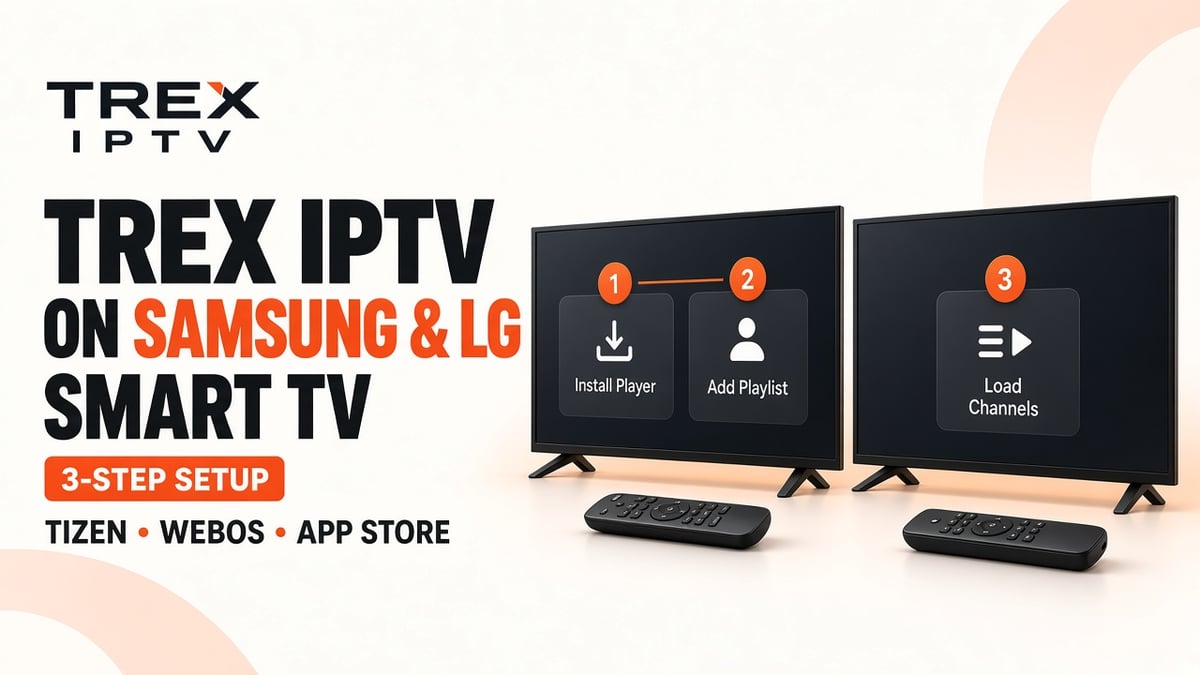
Want to watch Trex IPTV on your Samsung or LG Smart TV? You can set it up using a compatible IPTV player, provided the application supports your television's operating system and your account's login method.
Unlike Android TV devices, Samsung and LG Smart TVs use their own operating systems. Samsung televisions generally run Tizen, while LG models use webOS. This means you cannot normally install Android APK files directly on these televisions. Instead, you need to find a compatible IPTV application through the TV's app store and connect your Trex IPTV account.
This guide explains how to download a suitable IPTV player, add your account details, load your playlist, and troubleshoot common installation problems.
What You Need Before Installing Trex IPTV
Before starting, prepare a few things to make the installation easier.
| Requirement | Why you need it |
|---|---|
| Samsung or LG Smart TV | Your television must support compatible apps |
| Stable internet connection | Required to download apps and stream content |
| Compatible IPTV player | Used to load and play your IPTV content |
| Trex IPTV account details | Needed to connect your subscription |
| M3U URL or Xtream Codes details | Depends on the login method supported by your player |
Your IPTV service and IPTV player are separate. Trex IPTV provides the account access information, while the player handles the playlist and playback.
Important: The availability of IPTV applications depends on your TV model, operating system, country, and app-store region. Not every application is available on every Samsung or LG television.
How to Install Trex IPTV on Samsung Smart TV
Samsung Smart TVs use the Tizen operating system. You should install a compatible IPTV player from Samsung's Apps or Smart Hub section rather than trying to download an Android APK.
Step 1: Connect Your Samsung TV to the Internet
Turn on your Samsung Smart TV and connect it to your home network.
Press the Home button on your remote.
Open Settings.
Navigate to General or Network, depending on your model.
Select Network Settings.
Choose Wi-Fi or a wired Ethernet connection.
Complete the connection and check that the internet is working.
A stable connection is important because you will need it to download the IPTV player and load your playlist.
Step 2: Open Samsung Apps
After connecting your television:
Press the Home button on your remote.
Open the Apps section.
Select the Search option.
Enter the name of a compatible IPTV player.
Check the search results and select an application that supports your TV model and login method.
You may find different IPTV player applications depending on your television's model and region. Examples include Smart IPTV or IBO Player where available. Check the developer, compatibility, and any application fees before installing.
Step 3: Download and Install the IPTV Player
Once you find a suitable application:
Open its information page.
Select Install.
Wait for the download to finish.
Choose Open or Add to Home if the option appears.
Launch the application.
If the application does not appear in Samsung Apps, it may not support your model or region. Do not assume that downloading an APK onto a USB drive will solve this problem. Samsung Tizen TVs do not normally install Android APK applications.
Step 4: Connect Your Trex IPTV Account
Open the IPTV player and check which connection methods it supports.
Common options include:
- M3U playlist: A playlist URL supplied with your account.
- Xtream Codes API: A server URL, username, and password.
Some Smart TV players use a different process. They may display a device ID or MAC address and ask you to upload your playlist through the player's official website.
Follow the instructions shown by the application. Enter your Trex IPTV details carefully and check for typing errors before saving.
Step 5: Load Channels and Test Playback
After adding your account details, allow the player to load the playlist.
Depending on your service and player, you may see categories such as Live TV, Movies, Series, or an electronic programme guide.
Open a few available channels to check that the connection works correctly. If the list does not appear, refresh the playlist and verify that you entered the correct login information.
How to Install Trex IPTV on LG Smart TV
LG Smart TVs use webOS, which has its own application store and compatibility requirements. The installation process is similar to Samsung, but the menu names can differ between TV generations.
Step 1: Connect Your LG TV to the Internet
First, connect your LG television to Wi-Fi or Ethernet.
Press the Settings button on your remote.
Open All Settings.
Navigate to Network.
Select Wi-Fi Connection or Wired Connection.
Connect to your network.
Check that the TV can access online services.
You may also need to sign in to your LG account and accept the required user agreements before downloading applications.
Step 2: Open the LG Apps Section
Once your television is online:
Press the Home button.
Open Apps or the LG Content Store, depending on your webOS version.
Select the Search icon.
Enter the name of a compatible IPTV player.
Review the available applications.
Look for an IPTV player that supports your specific LG TV and the playlist or login method supplied with your account.
Step 3: Install a Compatible IPTV Application
Select the application you want to use and open its details page.
Choose Install and wait for the process to finish. Once installed, select Launch or find the application on your TV's Home screen.
If you cannot find a particular player, check your TV's webOS version, region settings, and model compatibility. Applications available on one LG television may not appear on another.
Step 4: Add Your Trex IPTV Login Details
Launch the installed player and follow its account setup instructions.
Depending on the application, you may be asked to:
- Enter an M3U playlist URL.
- Provide Xtream Codes login details.
- Register a device ID or MAC address through the player's official portal.
If your player uses a device registration method, open its official website on a phone or computer and follow the displayed instructions. Only use the portal linked or identified by the actual application developer.
Do not share your playlist URL or account password with unknown websites.
Step 5: Refresh the Playlist and Start Watching
After submitting your details, return to the IPTV player on your LG television.
Refresh or reload the playlist if necessary. Wait for the channel categories and available programme information to appear.
Select a channel and test playback. If everything loads correctly, your basic setup is complete.
Samsung vs LG Smart TV: Installation Differences
Although both televisions can use compatible IPTV players, their operating systems and app stores are different.
| Feature | Samsung Smart TV | LG Smart TV |
|---|---|---|
| Operating system | Tizen | webOS |
| App store | Samsung Apps / Smart Hub | LG Apps / Content Store |
| APK installation | Not normally supported | Not normally supported |
| IPTV player installation | Through supported TV apps | Through supported TV apps |
| Playlist methods | Depends on the player | Depends on the player |
| App availability | Model and region dependent | Model and region dependent |
The most important point is to choose a player that supports your exact television. Do not assume that an application available on Samsung will also be available on LG.
Common Trex IPTV Installation Problems on Samsung and LG TVs
If your IPTV player does not install or your channels do not load, check the following issues.
| Problem | Possible solution |
|---|---|
| IPTV player not appearing in the app store | Check TV model, region, and application compatibility |
| App download fails | Check internet access and available storage |
| Playlist not loading | Verify the M3U URL or Xtream Codes details |
| Login rejected | Check the server address, username, and password |
| Channels keep buffering | Test your connection and improve Wi-Fi signal |
| EPG information missing | Refresh the programme guide if supported |
| App freezes or closes | Restart the TV and update the application |
If an application is unavailable, check the developer's compatibility information or use a supported external streaming device, such as a compatible Android TV box or Fire TV device.
Frequently Asked Questions
Final Thoughts
Setting up Trex IPTV on a Samsung or LG Smart TV involves choosing a compatible IPTV player, installing it through the television's app store, and connecting your account details. The exact process depends on whether you use Samsung Tizen or LG webOS and which login method your player supports.
Before installing anything, confirm application compatibility with your TV model. Once your playlist is connected, refresh the channel list and test playback to make sure everything is working correctly.
For more information about compatible devices and setup options, visit the Trex IPTV website.