
How to Install Trex IPTV on Android TV and Google TV
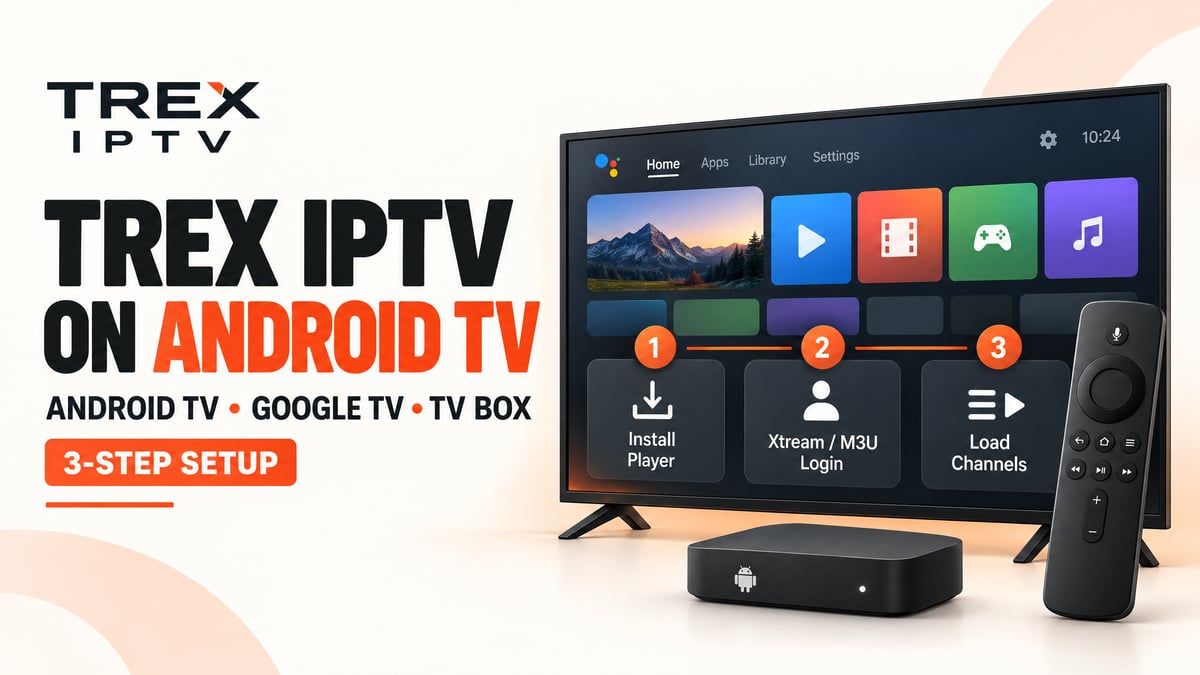
Want to learn how to install Trex IPTV on Android TV or Google TV? The setup process is straightforward when you have a compatible IPTV player and the correct subscription details. You can install a suitable player from Google Play, enter your login information, and load your available channels.
This guide explains how to set up Trex IPTV on Android TV, Google TV, and Android TV boxes. It also covers Xtream Codes API login, M3U playlist setup, channel loading, and common problems you may face during installation.
Before starting, make sure you have an active subscription from a provider authorized to distribute the content you want to watch.
What Do You Need to Set Up Trex IPTV?
Before installing Trex IPTV, prepare the following:
- An Android TV, Google TV device, or compatible Android TV box
- A stable internet connection
- An active Trex IPTV subscription
- A compatible IPTV player
- Your Xtream Codes API details or M3U playlist URL
Your provider should supply the connection details required by your subscription. Keep your username, password, and playlist URL private.
Important: Trex IPTV and an IPTV player are not necessarily the same thing. A player is an application used to load a compatible playlist or subscription. Installing the player alone does not provide channel access.
How to Install Trex IPTV on Android TV
Android TV devices include various televisions and streaming devices that use Google's Android TV operating system. The steps below explain how to install a compatible player and connect your subscription.
Step 1: Connect Your Android TV to the Internet
Turn on your television or Android TV box and connect it to your Wi-Fi network.
Open the device's network settings and confirm that the connection is working. If possible, open another streaming application to check whether your internet is available.
A stable connection helps the player download playlist information and stream content correctly.
Step 2: Open Google Play Store
From the Android TV home screen, open the Google Play Store.
Search for a compatible IPTV player. Depending on current availability and device compatibility, options may include TiviMate or IPTV Smarters Pro.
Before installing an application, check its developer, supported features, privacy information, and compatibility with your device.
Step 3: Install a Compatible IPTV Player
Select the player you want to use and choose Install. Wait for the installation to finish, then open the application.
Some players offer free and paid features. The player application and your IPTV subscription may be separate products, so check any applicable fees before paying.
If the application does not appear in Google Play, check whether it is compatible with your device and region. Avoid downloading APK files from unknown websites.
Step 4: Add Your Trex IPTV Subscription
Open the player and look for an option such as Add Playlist, Add User, or Login with Xtream Codes API.
The exact wording depends on the application you installed. Choose the login method that matches the details provided by your subscription provider.
You can usually connect using one of the following methods.
Option A: Login with Xtream Codes API
If you received Xtream Codes details, enter the information into the relevant fields:
- Playlist name: Enter a label such as Trex IPTV.
- Username: Enter your supplied username.
- Password: Enter your supplied password.
- Server URL: Enter the full server address, including the port if provided.
Check each field carefully before submitting the details. A missing character, incorrect URL, or extra space can cause a login error.
Option B: Add an M3U Playlist
If your provider supplied an M3U playlist URL, choose the M3U or playlist option in your IPTV player. Paste the complete URL into the correct field and save it. Do not enter the playlist link into a field intended only for the server address. Use the connection method supported by your player and subscription.
Step 5: Load Channels and the TV Guide
After adding your details, allow the player to connect and load the available playlist.
Depending on your subscription, player, and service, you may see live TV categories, movies, series, or an electronic programme guide (EPG).
The first playlist update may take longer if the service contains a large catalogue. Avoid repeatedly adding the same playlist while it is still loading.
If channels appear but the programme guide is empty, check the player's EPG settings and refresh the guide if that option is available.
Step 6: Test Playback
Select a channel or another item included with your subscription.
If it plays successfully, your initial setup is complete. If the playlist loads but playback fails, check the connection, subscription status, and player settings before reinstalling the application.
How to Set Up Trex IPTV on Google TV
Google TV uses a different home-screen interface from some Android TV devices, but the basic setup process is similar.
Step 1: Find an IPTV Player
From the Google TV home screen, open the Apps tab or use the search feature on your remote.
Search for a compatible IPTV player. If it appears in the available apps, open its listing and select Install.
The available applications can vary by region, device, and current app-store support.
Step 2: Open the Installed App
After installation, open the player from your apps list. Follow any initial prompts and select the option to add a playlist or subscription.
Step 3: Enter Your Login Details
Choose Xtream Codes API or M3U, depending on the details supplied by your provider.
Enter the required information, save the connection, and wait for the playlist to load. Then select an available channel to test playback.
For official instructions on finding and installing apps, see Google's Google TV app installation guide.
How to Install Trex IPTV on an Android TV Box
An Android TV box can provide similar functionality to a television with Android TV built in. However, not every Android box runs the same operating system or supports the same applications.
- Connect the Android TV box to your television and internet.
- Open Google Play Store, if available.
- Install a compatible IPTV player.
- Open the player and choose the appropriate login method.
- Enter your subscription credentials or M3U playlist URL.
- Wait for the playlist to load and test playback.
If your box does not include Google Play, check the manufacturer's instructions and the player's official compatibility information before installing anything from another source.
Trex IPTV Not Working on Android TV or Google TV?
If your Trex IPTV setup is not working, use these checks to identify the likely cause.
Trex IPTV Login Failed
Recheck your username, password, and server URL. Confirm that your subscription is active and that you are using the correct login method.
If the details appear correct, ask your provider to verify the account information.
Trex IPTV Channels Are Not Loading
Refresh the playlist from the player settings. If the channel list remains empty, check your internet connection and confirm that the subscription details are correct.
If the issue continues across multiple compatible players, contact your provider to investigate a possible service-side problem.
Trex IPTV Keeps Buffering
Restart your router and streaming device. If possible, use a wired Ethernet connection or move the device closer to your Wi-Fi router.
Test another streaming application to see whether the problem affects your whole connection or only the IPTV stream.
The EPG Is Not Updating
The electronic programme guide may need a separate refresh. Open the player's EPG settings and use the refresh option if available.
If the guide still does not load, confirm that the required EPG information is included and configured correctly.
The IPTV Player Is Missing from Google Play
App availability depends on the device, region, and developer support. Check the player's official information for supported platforms.
Do not install random APK files simply because an application is unavailable in the store.
Tips for a Better Trex IPTV Experience
For a smoother setup and more reliable playback:
- Keep your device's operating system and IPTV player updated.
- Use a stable Wi-Fi or Ethernet connection.
- Enter your subscription details carefully.
- Keep enough storage available for application updates.
- Use a player that supports your playlist format.
- Protect your login information and avoid sharing credentials publicly.
- Contact your provider if the server details or subscription status need checking.
Frequently Asked Questions
Start Your Trex IPTV Setup
Setting up Trex IPTV on Android TV or Google TV involves installing a compatible player, adding your subscription details, and waiting for the playlist to load. The same general process applies to many compatible Android TV boxes.
For help with your subscription, visit the Trex IPTV website and use the available support options. Always verify device compatibility and use authorized content sources before getting started.