
How to Install or Set Up or Install Trex IPTV on Firestick under 3 Minutes?
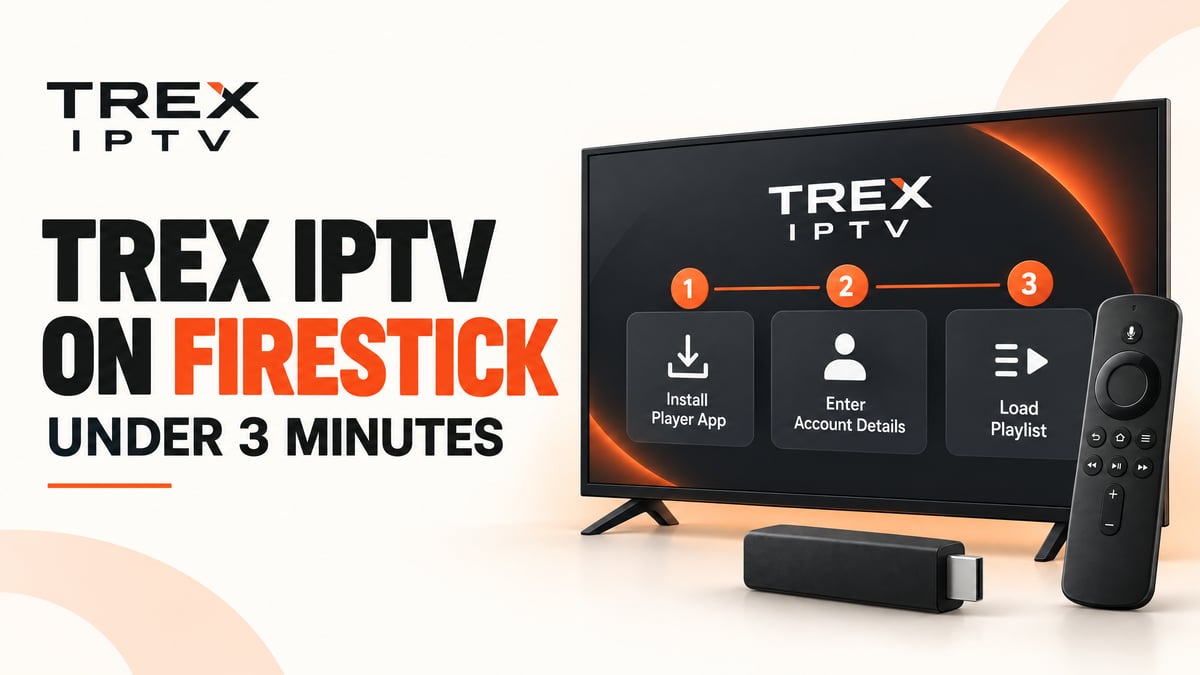
Want to learn how to set up Trex IPTV on Firestick? The process usually involves installing a compatible IPTV player, entering your subscription details, and loading your playlist. Once everything is configured correctly, you can use the player to access the content included with your subscription.
This guide explains how to install a compatible player, connect your Trex IPTV account, enter your login details, and fix common setup problems. Whether you are using a Fire TV Stick HD, Fire TV Stick 4K, or Fire TV Stick 4K Max, the exact steps may vary depending on your device and Fire OS version.
Before you begin, make sure you have an active subscription from a provider authorized to distribute the content you want to watch.
What Do You Need to Install Trex IPTV on Firestick?
Prepare these items before starting the installation:
- An Amazon Fire TV Stick connected to your TV and Wi-Fi network
- An active Trex IPTV subscription
- Your server URL, username, and password, or your M3U playlist URL
- A compatible IPTV player
- Enough available storage to install the application
Your provider should supply the connection details needed to configure the service. Keep them private because anyone with access to your credentials may be able to use your account.
How to Install Trex IPTV on Firestick
Trex IPTV is a streaming service, while an IPTV player is the application used to load a compatible playlist or account. The installation process depends on which player your provider recommends.
Step 1: Connect Your Firestick to the Internet
Turn on your Firestick and connect it to your Wi-Fi network.
From the home screen, open Settings, select Network, and check that your device is connected. If possible, test another streaming app to make sure the internet connection is working.
A stable connection helps prevent problems during installation and playback.
Step 2: Find a Compatible IPTV Player
From the Firestick home screen, open the search function and look for a compatible IPTV player.
If a suitable player is available through the Amazon Appstore, install it directly from there. This is generally the simplest option.
Choose an application that supports the playlist format or login method provided with your subscription. Depending on the service and device, compatible players may support Xtream Codes API credentials or M3U playlists.
Important: An IPTV player does not automatically provide channels or a subscription. You need valid access details from your service provider.
Step 3: Install the Player Using Downloader, If Required
If the recommended player is not available in the Amazon Appstore, your Firestick may support installing it from a trusted external source.
First, install the Downloader app from the Amazon Appstore, if available.
On compatible Fire OS devices, the usual process is:
- Open Settings on your Firestick.
- Select My Fire TV or the equivalent device menu.
- Open Developer Options.
- Select Install Unknown Apps.
- Enable permission for Downloader.
- Open Downloader and enter the verified download address supplied by the app developer or your authorized provider.
- Download and install the application if your device permits it.
On some devices, Developer Options may be hidden. You may need to open Settings → My Fire TV → About, select your device name several times, and return to the previous menu.
Menu names can differ between Fire OS versions. Some newer Fire TV Select models running Amazon's Vega operating system do not support traditional Android APK sideloading. If your device does not offer the necessary options, use a supported app from its store or check the manufacturer's compatibility information instead.
Only download installation files from sources you trust. Avoid random APK links and unknown Downloader codes.
Step 4: Open the IPTV Player
After installation, return to the Firestick home screen and open your new IPTV player.
Depending on the application, you may need to accept its terms or choose a setup option such as Add User, Add Playlist, or Login.
Select the login method that matches the details supplied by your provider.
Step 5: Enter Your Trex IPTV Login Details
Many IPTV services provide one of two connection formats.
Option A: Xtream Codes API
If your provider supplies Xtream Codes details, you will generally need:
- Playlist name: Choose a label, such as Trex IPTV.
- Username: Enter the username provided by your service.
- Password: Enter your supplied password.
- Server URL: Enter the complete server address, including the port if one is provided.
Check every field before submitting the details. Usernames and passwords may be case-sensitive, and an incorrect server address can prevent the playlist from connecting.
Option B: M3U Playlist URL
If you receive an M3U URL, choose the playlist option in your IPTV player and enter the full link exactly as provided. Do not use an M3U URL in a field intended only for a server address. Follow the instructions for your specific player.
Step 6: Load Your Playlist and TV Guide
After submitting your details, allow the player time to connect and load the available categories.
Depending on the application, you may see sections for live TV, movies, series, or a programme guide. The available sections depend on your subscription and player.
If the channel list appears but the TV guide is empty, look for an EPG or Update EPG option in the player's settings. An electronic programme guide is separate from the channel playlist, so it may need to update independently.
Step 7: Test a Channel
Once the playlist has loaded, select a channel or another item included in your subscription.
If playback works, your initial setup is complete. If the channel list remains empty or playback fails, check the login information and troubleshoot the connection before reinstalling the application.
Trex IPTV Not Working on Firestick? Try These Checks
Installation does not always go smoothly. These checks can help you identify the cause of common problems.
Trex IPTV Login Failed
Check your username, password, and server URL. Remove accidental spaces and confirm that you selected the correct login method.
If the information is correct but the login still fails, ask your provider to verify that your subscription is active and the server details have not changed.
Trex IPTV Channels Are Not Loading
Refresh the playlist from the player settings. If the list still does not appear, check your internet connection and confirm that your subscription details are valid.
If the problem affects all channels, contact your provider to check for an account or service-side issue.
Trex IPTV Keeps Buffering
Restart the Firestick and your router. If possible, move the device closer to the router or use a compatible network adapter.
Test another app to see whether the issue affects your entire connection or only the IPTV service. Persistent buffering may also relate to the stream or provider, rather than the Firestick itself.
Downloader Will Not Install the IPTV App
Check whether Downloader has permission to install apps on your device. Confirm that the downloaded file is compatible with your Fire OS version and came from a trusted source.
If your Fire TV model does not support sideloading, do not try to bypass device restrictions. Look for a compatible app-store option or another supported device.
The IPTV Player Opens but Shows No Channels
A player can install successfully without connecting to a working playlist. Verify that you added your subscription details and that the playlist has finished loading.
If the issue continues, contact your provider with the exact error message. Never share your password publicly when asking for technical help.
Tips for a Better Trex IPTV Experience on Firestick
A few simple habits can make setup and account management easier:
- Keep Fire OS and your IPTV player updated when compatible updates are available.
- Use a stable Wi-Fi connection.
- Save your login details in a secure location.
- Keep enough free storage for application updates.
- Use the correct playlist format for your chosen player.
- Contact your provider before changing server details or replacing your playlist.
- Avoid unofficial APK files and unverified download codes.
Frequently Asked Questions
Start Your Trex IPTV Setup
Setting up Trex IPTV on Firestick involves choosing a compatible player, entering the correct subscription details, and allowing the playlist to load. Most setup problems can be narrowed down by checking the connection, credentials, playlist format, and device compatibility.
For help with your Trex IPTV account, visit the Trex IPTV website and use the available support options. Confirm that your chosen player and Firestick model are supported before installing any application.