
Trex IPTV with TiviMate: Setup, EPG and Playback Guide
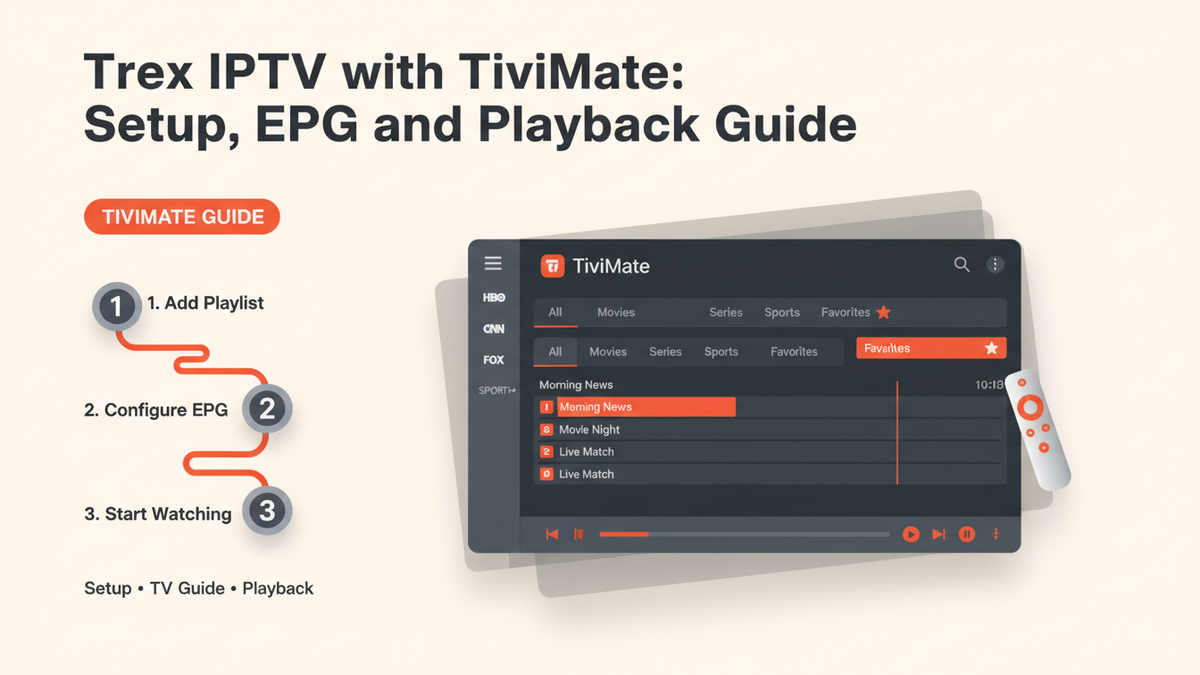
If you use Trex IPTV with TiviMate, the right setup can make your live TV library much easier to navigate. TiviMate is an IPTV player that organizes your playlist into live TV categories, TV guides, favorites, and playback controls. It does not provide TV channels itself. You need valid IPTV credentials or a playlist from your IPTV service.
This guide explains how to set up Trex IPTV on TiviMate, load your channels, configure the EPG, organize your TV guide, and troubleshoot common playback problems.
What You Need Before Setting Up Trex IPTV on TiviMate
Before opening TiviMate, have these items ready:
- TiviMate installed on your compatible device
- An active Trex IPTV subscription
- Your Trex IPTV login details
- A stable internet connection
- A compatible Android TV, Google TV, Fire TV, or Android device
Depending on your Trex IPTV setup, you may receive Xtream Codes credentials (server URL, username, and password) or an M3U playlist URL.
TiviMate supports both common playlist methods, although the exact menu names can vary by version. Current TiviMate guides commonly describe Xtream Codes and M3U as the main ways to add an IPTV playlist.
How to Set Up Trex IPTV on TiviMate
The basic process is straightforward:
- Install and open TiviMate.
- Select Add Playlist.
- Choose the login method your IPTV service provides.
- Enter your Trex IPTV details.
- Allow the playlist to load.
- Wait for the channels and categories to synchronize.
- Update the EPG.
- Test several live channels.
Step 1: Open TiviMate
Launch TiviMate on your Android TV, Google TV, Fire TV, or compatible Android device.
If this is your first time using the app, TiviMate will normally ask you to add a playlist.
If you have already added another playlist, go to the playlist management section and select the option to add another playlist.
Step 2: Choose Your Playlist Method
Your Trex IPTV credentials determine which option you should select.
If you received Xtream Codes:
Choose Xtream Codes API and enter:
- Server URL
- Username
- Password
If you received an M3U URL:
Choose the M3U or playlist URL option and paste the complete URL supplied with your subscription.
Do not modify the URL or guess missing information. A single missing character can prevent the playlist from loading.
Step 3: Let TiviMate Load Your Playlist
After entering your details, TiviMate connects to the IPTV service and retrieves the available content.
Depending on the playlist, you may see categories such as:
- Live TV
- Sports
- News
- Movies
- Series
- International channels
- Regional channels
The exact categories depend on the IPTV service and account configuration.
Do not start changing advanced settings immediately. First confirm that your playlist loads correctly.
How to Set Up EPG for Trex IPTV in TiviMate
EPG, or Electronic Program Guide, is the information that shows what is currently playing and what is scheduled next.
Without EPG data, your channels can still work while the TV Guide displays blank listings or "No Information".
With an Xtream Codes setup, EPG information may be provided through the service connection. With an M3U setup, an additional XMLTV EPG source may be required depending on how the playlist is configured. Current TiviMate guides describe both approaches.
Refresh the EPG
After adding your Trex IPTV playlist:
- Open Settings.
- Go to the EPG section.
- Select the relevant playlist or EPG source if required.
- Choose Update EPG or the equivalent refresh option.
- Wait for the update to complete.
- Open the TV Guide again.
Menu names can differ between TiviMate versions, so use the EPG or TV Guide settings available in your installation.
What If the EPG Is Blank?
If the TV Guide shows No Information, check these items first:
- Refresh the EPG manually.
- Confirm your playlist is active.
- Check that your device date and timezone are correct.
- Restart TiviMate.
- Check whether all channels or only some channels are affected.
- Verify the EPG source if you are using a separate XMLTV URL.
If only certain channels are missing guide information, the issue may be channel mapping or incomplete EPG coverage rather than a complete EPG failure.
Recent Trex-related Reddit discussions have also included users reporting missing or incomplete EPG data, so an EPG problem does not automatically mean that your TiviMate installation is incorrect.
How to Fix Wrong EPG Times in TiviMate
If the guide works but program times are incorrect, start with your device settings. Check that:
- Automatic date and time are enabled.
- Your timezone is correct.
- The device clock is accurate.
- Any EPG time offset in TiviMate has not been changed unnecessarily.
For example, if every program appears exactly one hour early or late, a timezone or offset setting is worth checking before rebuilding the playlist.
How to Organize Trex IPTV Channels in TiviMate
A large IPTV playlist can contain far more channels than you regularly watch. TiviMate makes it easier to organize the list for everyday viewing.
Create a Favorites List
Add your most-used channels to Favorites. This can include:
- Local channels
- News channels
- Sports channels
- Entertainment channels
- Kids channels
- Frequently watched international channels
Instead of scrolling through the entire playlist, you can then access your regular channels much faster.
Hide Unused Groups
If your Trex IPTV playlist contains categories you never use, consider hiding unnecessary groups. This reduces clutter and makes the interface easier to navigate with a remote.
Keep the EPG Updated
After organizing your channels, refresh the EPG so the guide remains synchronized with the available channel information.
Trex IPTV Playback Settings in TiviMate
Once your channels and EPG are working, test playback before making advanced changes.
Start with the default playback configuration.
If a channel plays normally, there is usually no reason to change multiple decoder or buffering settings.
For a playback problem, change one setting at a time and test the same channel again.
This makes it much easier to identify which setting affects the problem.
How to Fix Trex IPTV Buffering in TiviMate
Buffering can come from several places, including your internet connection, Wi-Fi conditions, device performance, or the individual stream. Start with the simple checks:
- Test another Trex IPTV channel.
- Check whether other apps stream normally.
- Restart your router if your connection appears unstable.
- Move closer to your Wi-Fi router or use Ethernet where practical.
- Close unnecessary apps running on the device.
- Restart TiviMate.
- Test the same channel again.
If one channel buffers while other channels play normally, the problem may be specific to that stream rather than your entire setup.
What If a Trex IPTV Channel Freezes in TiviMate?
A common playback pattern reported by TiviMate users is a channel that freezes or becomes stuck after the underlying stream changes. One recent Reddit discussion specifically described a TREX setup where a channel would freeze after a source change, and reopening the channel restored playback.
If this happens:
- Exit the affected channel.
- Return to the channel list.
- Open the channel again.
- Test another channel.
- If only one channel is affected, try it again later.
If several channels have the same problem, investigate your internet connection, device, player configuration, or the IPTV service itself.
Trex IPTV Works but TiviMate Shows No EPG
This is one of the most confusing situations because the live TV stream can work while the guide does not. Try this order:
- First: Refresh the EPG.
- Second: Check your device's time zone.
- Third: Restart TiviMate.
- Fourth: Check the playlist's EPG configuration.
- Fifth: Determine whether the problem affects every channel or only certain channels.
If live TV continues working but the guide remains empty, avoid deleting your entire playlist immediately. First, determine whether the issue is limited to the EPG.
Trex IPTV Login Works but Channels Do Not Play
If your playlist loads but individual channels fail to play, test multiple channels.
If only one or two channels fail:
- Try another channel.
- Return to the channel later.
- Check whether other categories work.
If most channels fail:
- Check your internet connection.
- Restart TiviMate.
- Restart your streaming device.
- Verify your account details.
- Check whether the subscription is still active.
- Contact your IPTV provider if the problem continues.
TiviMate itself is a player and does not independently provide the underlying channel streams. The source of the playlist and stream therefore matters when diagnosing playback problems.
Best Way to Test Your Trex IPTV Setup
After completing the setup, test the system in this order:
1. Test Live TV
Open several channels from different categories.
2. Test the EPG
Open the TV Guide and check whether current and upcoming programs are displayed.
3. Test Playback
Leave a channel playing for several minutes and watch for freezing or buffering.
4. Test Different Categories
Try news, entertainment, sports, and other available groups.
5. Test Favorites
Add several channels and confirm they appear correctly in your Favorites section.
This simple test helps you determine whether the problem is with the playlist, EPG, a particular channel, or playback.
Common Trex IPTV and TiviMate Problems
| Problem | What to Check |
|---|---|
| Playlist will not load | Server URL, username, password, or M3U URL |
| EPG is blank | Refresh EPG and check EPG configuration |
| EPG shows wrong times | Device timezone and EPG offset |
| Some channels have no guide | EPG coverage or channel mapping |
| Channel keeps buffering | Internet, Wi-Fi, device, or individual stream |
| One channel freezes | Test other channels and reopen the affected channel |
| All channels stop playing | Internet, account, playlist, or service issue |
| TiviMate becomes slow | Restart the app and device, then check available storage |
Final Thoughts
Using Trex IPTV with TiviMate involves three main parts: getting the playlist connected, making sure the EPG is synchronized, and confirming that live playback works correctly.
If you encounter a problem, troubleshoot one layer at a time. Check the playlist first, then EPG, then playback. This prevents unnecessary changes and makes it easier to identify the actual source of the problem.
For additional setup help, use the relevant Trex IPTV installation and support resources on the website.