Trex IPTV Official: Features, Subscription and Setup Guide
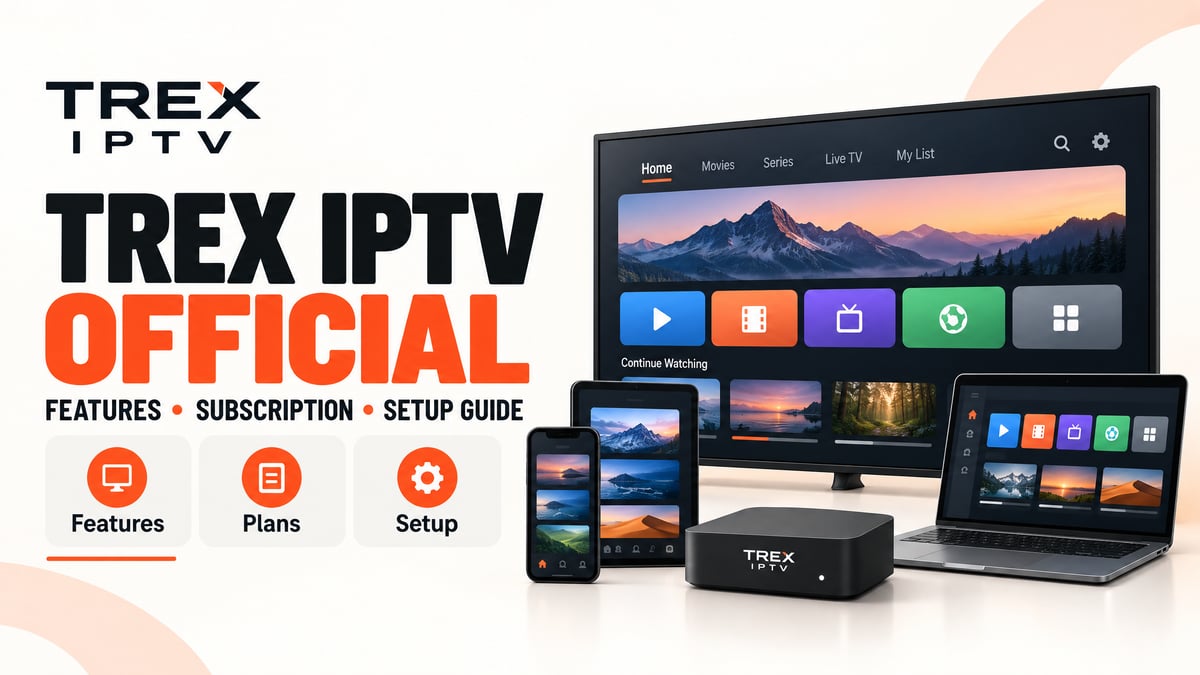
Choosing an IPTV service involves more than checking the channel list or subscription price. You also need to understand how the service works, which devices it supports, what is included in a subscription, and how to get started.
This guide explains the main features of Trex IPTV, the subscription options currently listed on the website, and the basic steps involved in setting up your account. It also covers device compatibility, streaming requirements, and important points to check before choosing a plan.
Whether you are exploring Trex IPTV for the first time or comparing your viewing options, this overview will help you understand the process before getting started.
What Is Trex IPTV?
Trex IPTV is an internet-based television service that provides access to live television and on-demand entertainment through compatible devices and IPTV player applications.
Unlike traditional cable or satellite television, IPTV delivers streams over an internet connection. You can use a compatible television, streaming device, smartphone, tablet, or computer, depending on the available player and your device's capabilities.
The service login and the IPTV player have different roles. Trex IPTV provides the account access details, while the player is the application you use to load and watch available content.
Depending on the supported connection method, your account details may include:
- Xtream Codes: A server address, username, and password.
- M3U playlist: A URL used to load a channel playlist.
- Portal connection: A portal URL configured on a compatible set-top box.
The correct method depends on your account details and the device you want to use.
Key Features of Trex IPTV
The features you can access depend on content availability, device compatibility, and the service configuration. The website currently lists live channels, an on-demand library, supported programme-guide information, and selected catch-up content.
1. Live TV Channels
Live television is useful for viewers who prefer scheduled programming, news, entertainment, and other available channel categories in one interface.
The Trex IPTV website currently advertises a broad channel catalogue, including international programming and selected sports content. However, the availability of individual channels and events can change, so check the current catalogue if you need a particular channel.
2. Movies and Series on Demand
An on-demand library lets you browse available movies and series rather than relying only on a live television schedule.
Depending on the available catalogue, viewers can explore entertainment across different categories. Content selection may change over time, and a particular title should not be assumed to remain available permanently.
3. Multiple Streaming Quality Options
Trex IPTV lists SD, HD, Full HD, and selected 4K streams.
The quality you actually receive depends on the source stream, your internet connection, the playback device, and the player settings. A 4K-capable television alone does not guarantee that every channel or programme will stream in 4K.
For the best experience, check the quality of the content you want to watch and make sure your device and connection can support it.
4. Electronic Programme Guide (EPG)
An Electronic Programme Guide, or EPG, displays scheduling information for supported channels.
When programme data is available, it can help you see what is currently airing and what is scheduled next. Guide information may be incomplete for some channels, so its availability can vary across the catalogue.
5. Catch-Up Content Where Available
Selected catch-up content may let you watch certain programmes after their original broadcast.
This feature depends on the specific channel and the availability of catch-up playback. It should not be treated as a guarantee that every live programme can be replayed.
6. Access Through Compatible Devices
Trex IPTV can be used with a range of supported devices through compatible player applications or connection methods.
This gives viewers flexibility when choosing where to watch. Before subscribing, confirm that your particular device supports a suitable player and the login method supplied with your account.
Trex IPTV Subscription Options
The Trex IPTV website currently lists four standard subscription periods. The main difference between these options is the length of access and the average monthly cost.
| Subscription period | Listed total price | Approximate monthly cost | Best suited for |
|---|---|---|---|
| 1 month | $12.99 | $12.99 | Short-term testing |
| 3 months | $24.99 | $8.33 | A shorter commitment |
| 6 months | $35.99 | $6.00 | Regular viewing |
| 12 months | $59.99 | $5.00 | A longer access period |
Prices are in US dollars and reflect the website's currently listed options. Confirm the final price and terms on the subscription page before ordering.
Which Subscription Should You Choose?
The right plan depends on how long you intend to use the service and whether you have confirmed that it works with your device.
1-month option: Consider this if you want a shorter commitment while checking compatibility and playback.
3-month option: A middle-ground choice for viewers who want more time without selecting a long subscription.
6-month option: Worth considering once you have tested the service and confirmed that your setup works as expected.
12-month option: Offers the lowest average monthly cost among the listed periods, but involves a longer commitment.
All four options should be compared using the current terms rather than price alone. Check the active-stream limit, renewal conditions, refund policy, and any separate application costs before paying.
For the full price breakdown, visit the Trex IPTV Subscription Plans page.
Which Devices Can You Use With Trex IPTV?
Device compatibility depends on the hardware, operating system, available applications, and connection method.
| Device category | Common connection approach | What to check |
|---|---|---|
| Amazon Fire TV Stick | Compatible IPTV player | App availability and login support |
| Android TV and Google TV | IPTV player from a supported app store | Xtream Codes or M3U compatibility |
| Android TV boxes | Compatible IPTV application | Hardware performance and software support |
| Samsung Smart TVs | Supported Smart TV player | Exact model and app availability |
| LG Smart TVs | Supported Smart TV player | TV operating system and player support |
| Android phones and tablets | Mobile IPTV player | App compatibility and screen size |
| iPhone and iPad | Compatible iOS player | App Store availability and supported login method |
| Windows and Mac | Compatible desktop player | Playlist format and operating system support |
| MAG and supported set-top boxes | Portal connection where supported | Device model and portal requirements |
| Roku | Compatible available method, where supported | Model, region, and available playback options |
This table is a general compatibility overview, not a guarantee that every model or application will work. Some devices have fewer IPTV player options than others.
Check the dedicated Trex IPTV Supported Devices page for more specific compatibility information.
How to Get Started With Trex IPTV
Getting started generally involves checking your device, selecting an eligible subscription or trial, receiving your login details, and connecting them to a compatible player.
Step 1: Check Your Device
Identify the exact device you plan to use. Check its operating system, available storage, and whether a compatible IPTV player is available.
If you are using a Smart TV, look in its app store before ordering. This helps you avoid choosing a service before confirming that your television can support the required playback method.
Step 2: Choose a Subscription or Eligible Trial
Compare the available access periods and review the terms before placing an order. If you are unsure whether your device or internet connection will work properly, check whether a trial is available to you.
Trex IPTV currently advertises an eligible 24-hour trial. Confirm the current trial conditions and instructions through the website before requesting access.
Step 3: Receive Your Login Information
After your order or trial is approved, follow the supplied instructions to obtain your account information.
Depending on the connection method, you may receive an Xtream Codes login, an M3U playlist URL, or portal details for a compatible device.
Keep these details private. Anyone with access to your credentials or playlist URL may be able to use your account.
Step 4: Connect Your Account to an IPTV Player
Install a compatible IPTV player from a trusted source. Open the player and select the appropriate option, such as adding a playlist or signing in with Xtream Codes.
Enter the details exactly as provided. Save the configuration and allow the playlist, channel categories, and programme information to load.
Step 5: Test Playback
Before relying on the service for everyday viewing, test several available channels and content categories.
Check that playback starts correctly, the picture quality is suitable, and programme-guide information loads where available. Testing your setup early makes it easier to identify login, network, or compatibility issues.
For device-specific instructions, follow the Trex IPTV Installation Guide.
Internet Requirements for Smooth Streaming
Your internet connection can affect startup time, picture quality, and playback stability. The recommended speeds below are general guidelines listed on the Trex IPTV website.
| Streaming quality | Approximate recommended speed |
|---|---|
| HD | 15 Mbps |
| Full HD | 25 Mbps |
| Selected 4K streams | 50 Mbps |
These figures are guidelines rather than guarantees. Actual performance also depends on network congestion, Wi-Fi strength, router performance, the streaming device, and the source stream.
To improve your viewing experience:
- Use an Ethernet connection when practical.
- Keep Wi-Fi devices close to the router.
- Avoid large downloads while streaming.
- Restart your router and player if playback becomes unstable.
- Check internet speed on the device you actually use for viewing.
A fast internet package may still experience buffering if the Wi-Fi signal is weak or the network is congested.
Understand the Active-Stream Limit
Installing or saving an IPTV login on multiple devices does not necessarily mean you can stream on all of them at once.
The standard Trex IPTV subscription options currently list one active stream at a time. This means you can switch between supported personal devices, but simultaneous viewing may require a different connection arrangement.
For example, watching on your television and then switching to your phone is different from streaming on both devices at the same time.
If multiple household members need to watch different programmes simultaneously, confirm the available connection options with support before ordering.
Trex IPTV Setup and Subscription Checklist
Before choosing a plan, use this checklist to review the main requirements.
| Checkpoint | What to confirm |
|---|---|
| Device | Your exact model supports a compatible player |
| Application | The player is available from a trusted source |
| Login method | Your player supports the supplied credentials |
| Internet | Your connection is suitable for your preferred quality |
| Simultaneous viewing | The included active-stream limit meets your needs |
| Additional costs | Any third-party player fee is understood |
| Subscription terms | Price, duration, renewal, and refund conditions are clear |
| Content availability | The channels or categories you need are currently available |
Reviewing these points before payment can help you make a more informed decision and reduce avoidable setup problems.
Common Problems and What to Check
Even with a compatible device, you may occasionally encounter a login or playback issue. The cause can be related to the account, player, network, or content source.
| Problem | First thing to check |
|---|---|
| Login rejected | Recheck the server address, username, and password |
| Playlist will not load | Confirm the playlist URL or login method |
| Buffering | Test the internet connection and Wi-Fi signal |
| Programme guide is empty | Refresh the EPG and check whether guide data is available |
| One device interrupts another | Check the active-stream limit |
| Player is unavailable | Check your device's official app store and supported alternatives |
If an issue continues, contact support with your device model, player name, and exact error message. Never send your password or full playlist URL in a public post or an untrusted support channel.
Frequently Asked Questions
Choose Your Trex IPTV Setup With Confidence
A good starting point is to confirm device compatibility, understand the subscription terms, and test your setup before making a longer commitment.
Explore the Trex IPTV subscription options, review the supported devices, or follow the installation guide to find the information relevant to your setup.
Review current service details and content availability before ordering, and make sure you use any streaming service in accordance with applicable laws and content rights.