
Trex IPTV Login Not Working? Fix Login Errors Fast in Minutes
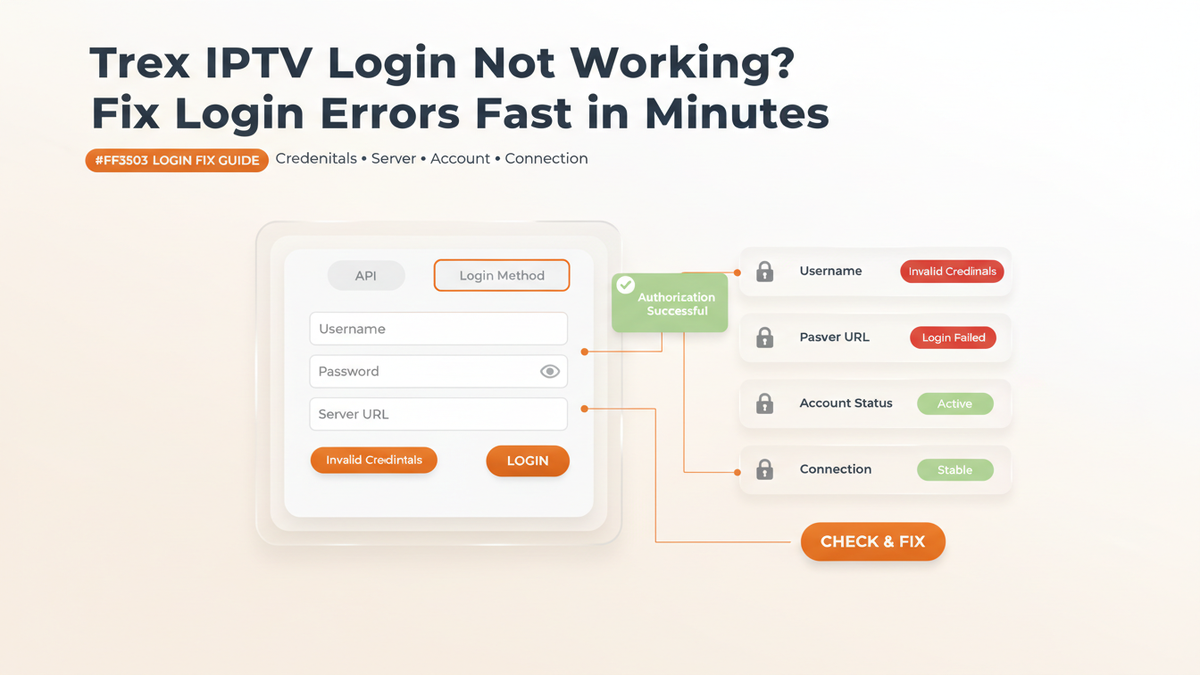
If your Trex IPTV login is not working, do not immediately reinstall your IPTV player or reset your device. In many cases, the problem comes from an incorrect username, password, server URL, login method, expired account, or a connection issue.
The good news is that most login problems can be narrowed down with a few simple checks.
This guide explains what to check when Trex IPTV shows errors such as "invalid credentials," "login failed," "authorization failed," "server error," or when your playlist simply refuses to load.
Why Is Trex IPTV Login Not Working?
The most common causes are:
- Incorrect username or password
- Extra spaces copied with your credentials
- Incorrect server URL or port
- Using the wrong login method
- Expired or inactive subscription
- Too many active connections
- Internet or network problems
- An IPTV player configuration problem
- A temporary provider or server issue
If your login worked previously and suddenly stopped, do not assume your password is wrong. An expired account, changed server address, connection limit, or provider-side problem can produce similar errors.
First, Check Your Trex IPTV Login Details
If you use an Xtream Codes login, you will normally need three pieces of information:
- Server URL
- Username
- Password
Some IPTV services instead provide an M3U playlist URL. These are different login methods, so putting an Xtream username and password into an M3U playlist field will not work.
Check for Extra Spaces
Copy and paste your credentials carefully.
A common problem is accidentally copying a space or line break at the beginning or end of a username, password, or URL. Login credentials may also be case-sensitive.
For example, these can be treated differently:
If possible, copy the original credentials directly from the message or account information supplied by your IPTV provider rather than typing them from memory. Troubleshooting guides and user reports repeatedly identify typos, whitespace, and incorrect credential formatting as common causes of IPTV login failures.
Check the Server URL Carefully
The server URL is one of the most important parts of an IPTV login.
Check every part of it, including:
- http:// or https://
- The domain or server address
- The port number, if provided
- Spelling
- Numbers
- Any required formatting
For example, a provider may give you something similar to:
http://example.com:8080
Do not replace the server address with a random IPTV URL you find online.
If your provider supplied a specific server address, use that exact address.
A recent Firestick troubleshooting discussion illustrates how a single URL or playlist error can cause a generic login or playlist failure, even when the IPTV app itself is working correctly.
Make Sure You Are Using the Correct Login Method
Another common mistake is choosing the wrong option inside the IPTV player.
If your provider gave you: Username + Password + Server URL
look for an option such as: Login with Xtream Codes API
If you received an M3U playlist URL, use the playlist or M3U option instead.
Do not paste a username into an M3U URL field or try to treat a complete M3U link as a server address. These login methods contain different information and are handled differently by IPTV applications.
Check Whether Your IPTV Subscription Is Active
If your Trex IPTV login worked before but has suddenly stopped, check your subscription status.
An expired or suspended account can sometimes look like an incorrect-login problem because IPTV players do not always display a detailed explanation.
Ask yourself:
- Did the subscription recently expire?
- Did you recently change or renew your plan?
- Did the provider send updated credentials?
- Does the account work on another supported device?
- Did the problem begin suddenly after working normally?
If the subscription has expired, changing IPTV players will not solve the problem. You need to resolve the account status with your provider.
Check for Too Many Active Connections
Some IPTV subscriptions limit the number of devices that can connect at the same time.
For example, if your account allows one connection and it is already being used on another device, attempting to log in or stream from a second device may produce an access or connection error.
Close the IPTV application on your other devices and try again.
If you recently shared your login with another device, make sure that device is no longer connected.
If you continue receiving a connection-limit message, contact your provider and ask them to confirm the authorized connection limit on your account.
Trex IPTV Login Not Working on Firestick
If you are using a Firestick, start with the simplest checks before changing advanced settings.
Step 1: Restart the IPTV app
Completely close the application and open it again.
Step 2: Restart the Firestick
Restarting the device can clear temporary application or network problems.
Step 3: Check your internet connection
Open another streaming application and verify that your Firestick can access the internet.
Step 4: Re-enter the login
Remove the existing IPTV account from the player and enter the credentials again.
Step 5: Check the server URL
Compare the URL character by character with the original information provided by your IPTV service.
If the login still fails after these checks, test whether the same credentials work on another compatible device or player. That comparison can help determine whether the problem is specific to the Firestick, the application, or the IPTV account.
Trex IPTV Login Not Working on TiviMate
TiviMate users can sometimes encounter playlist update or authentication problems that appear to be an app issue but are actually related to the IPTV source. Recent TiviMate discussions show users reporting failed playlist updates and being advised to check the provider because the player cannot update a playlist if the supplied URL is not returning the expected information.
If Trex IPTV is not loading in TiviMate:
- Open the playlist settings.
- Check the server or playlist URL.
- Confirm the username and password.
- Remove accidental spaces.
- Refresh the playlist.
- Restart TiviMate.
- Test your internet connection.
- Contact your provider if the playlist still cannot be reached.
Do not repeatedly delete and reinstall TiviMate without first checking your credentials and server information.
Trex IPTV Login Not Working on IPTV Smarters
If you use IPTV Smarters and receive messages such as "Authorization failed," "Invalid details," or a similar login error, first confirm that you selected the correct login method.
Check:
- Username
- Password
- Server URL
- Protocol
- Port
- Subscription status
- Internet connection
Community troubleshooting discussions also show that IPTV Smarters users can encounter app-specific URL formatting problems, particularly on certain Smart TV implementations. Because the correct format can vary by app version and device, use the exact format required by your provider and the player you are using rather than applying a random URL modification.
What If Trex IPTV Works on One Device but Not Another?
This is an important test.
If the same account works on your phone but does not work on your Firestick, the account itself may be fine. The problem could instead be related to:
- The IPTV player
- Device configuration
- Incorrect URL entry
- App cache
- Network connection
- Device compatibility
On the other hand, if the login fails everywhere, the problem is more likely to involve your credentials, subscription, server, or provider.
This simple test can save you from changing settings unnecessarily.
Should You Reinstall Your IPTV Player?
Reinstalling the app should not be your first step. Try these checks first:
- Verify the username.
- Verify the password.
- Verify the server URL.
- Confirm the correct login method.
- Check the subscription status.
- Restart your device.
- Test your internet connection.
- Try another compatible player if appropriate.
If everything is correct and the login still fails, reinstalling or clearing the application's stored data can be a reasonable next step. Remember that clearing app data may remove your saved playlists and settings, so keep your original login information available before doing it.
When Should You Contact Trex IPTV Support?
Contact your IPTV provider when you have confirmed that:
- Your internet is working
- Your credentials were entered correctly
- The correct login method is being used
- Your subscription is active
- The server URL matches the information you received
- You have restarted the device and player
- The login fails on more than one compatible device
When contacting support, provide useful information such as your device model, IPTV player name, the exact error message, and a screenshot if appropriate.
Do not publicly post your username, password, or private IPTV credentials.
If the provider confirms that your account is active but the supplied server cannot be reached, the issue may be on the service side rather than with your device.
Contact Trex IPTV SupportQuick Trex IPTV Login Troubleshooting Checklist
Before contacting support, work through this checklist:
- Username entered correctly
- Password entered correctly
- No extra spaces
- Correct server URL
- Correct port
- Correct http or https format
- Correct login method selected
- Subscription is active
- No connection limit has been reached
- Internet connection is working
- IPTV player restarted
- Streaming device restarted
- Login tested on another compatible device
If all of these checks pass and Trex IPTV still refuses to authenticate, there is a good chance the issue requires provider-side assistance.
Conclusion
A Trex IPTV login that is not working does not necessarily mean your IPTV player is broken. Start with the information that matters most: your server URL, username, password, login method, and account status.
For most users, carefully re-entering the original credentials and checking the server URL is the best first step. If the problem continues across multiple devices, stop changing player settings and contact the provider to verify the account and server.
The goal is to identify whether the problem is with your credentials, your device, your IPTV player, your internet connection, or the service itself. Once you identify that point of failure, the solution is usually much simpler.